Essential Mac Shortcuts and Tips
Apple's built-in Universal Control feature
Shortcuts
Screenshots
Shift + Ctrl + Cmd + 3 - Copy window -> cmd+v (paste)
Cmd + Shift + 3 - whole window
Cmd + Shift + 4 - selection - selection crosshairs
Cmd + Shift + 4 - selection -> space (selection window)
Cmd + Shift + 5 - Record whole screen
Force kill - cmd + opt + esc
Exit Full Screen / Full screen - ^ + ⌘ + F (Ctrl + Cmd + F)
^ + ⌘ + q (Lock screen) (Ctrl + Cmd + Q)
Quicktime player Shortcuts - Hold Option + fast forward button on quicktime player
Preview pdf shortcuts - Command + 1 - continuous scroll
# open folder in vscode
code .

# open finder at certain folder location
open .

# open iterm2 at a certain folder
open -a iTerm .
Create a new text file
If you have the Finder window open, use Spotlight to open TextEdit. When you're ready to save the file, option+drag the text file icon from the title bar of TextEdit into the Finder window where you want to save it.
Show/hide hidden folders = Command + shift + .
Ctrl + Cmd + space - Character Palette
You can select the file and pressOption+Command+Cto copy the pathname to the clipboard.
Right Click on folder > option (gives more options)
Terminal Commands
Open two instance of same application - open -n MQTT.fx.app
Screenshots
⌘ + Shift + 4, #selection
⌘ + Shift + 4, + Space #window selection
⌘ + Shift + 3, #whole screen
⌘ + Option + D - show/hide dock
⌘ + Option + ESC - Force Quit Application dialogue
Option + Characters - Special Characters like (µåß∂√ƒç≈Ω)
Setting up Windows
- Install wsl (powershell -
wsl --install)ln -s /mnt/c/Users/deepa/Repositories ~/Repositories
- Install ubuntu
- https://code.visualstudio.com/docs/remote/wsl
- In vscode setup WSL
- Install brew in WSL
ln -s /mnt/c/Users/deepa/Downloads ~/downloadscd /mnt/c- windows file location- setup lock default screen - How to Enable or Disable Lock Screen in Windows 11 / 10 - YouTube
- enable gpedit.msc in windows home - Enable Group Policy Editor (gpedit.msc) on Windows 10/11 Home Edition | Windows OS Hub
- enable clipboard - windows + V
- capture text from images - How to extract text from images on Windows 11 - ARTICLE - Microsoft Q&A
- group tabs settings - show tabs from apps when snapping or pressing alt+tab
- Title bar window shake
- folder options
- Hide extensions for known file types
- setup default downloads directory - How to Make File Explorer Open to the Downloads Folder by Default - YouTube
- Date & Time settings
- show seconds in system tray
- How do I show the day of the week in the taskbar? - Microsoft Q&A
- Dock and Menu Bar - Auto Hide
- Desktop & Dock - Automatically hide and show the Dock
- Menu Bar - Automatically hide and show the menu bar
- Install apps
- chrome
- dark mode - I use both of dark reader extension and Chrome://flags. It can be interchangeable if the website has the problem with dark mode
- Change every single website to 'Dark Mode' in Google Chrome. : r/chrome
- Google Calendar
- Setting - Don't show others your events
- file download manager
- google drive
- obsidian
- vscode
- Zoom
- jump desktop
- tailscale
- docker
- chrome
Windows Shortcuts
- win + A
- win + N
- win + v - clipboard history
Setting up MAC
-
Add iterm2 - download from web, details below
-
Install brew - command on official website (/bin/bash -c "$(curl -fsSL https://raw.githubusercontent.com/Homebrew/install/master/install.sh)")
- Homebrew on Linux — Homebrew Documentation
- sudo apt update && sudo apt upgrade
- sudo apt-get install build-essential procps curl file git
- /bin/bash -c "$(curl -fsSL https://raw.githubusercontent.com/Homebrew/install/HEAD/install.sh)"
- The installer will usually provide "Next Steps" to add Homebrew to your PATH.
- echo 'eval "$(/home/linuxbrew/.linuxbrew/bin/brew shellenv)"' >> ~/.profile
- eval "$(/home/linuxbrew/.linuxbrew/bin/brew shellenv)"
- Homebrew on Linux — Homebrew Documentation
-
Add zsh - details below
-
Add docker desktop for mac
-
Add Anaconda -
Irvue -
Onenote -
Obsidian
-
VSCode / Visual Studio Code
Open the Command Palette(⇧⌘P) and type 'shell command' to find the Shell Command: Install 'code' command in PATH command.
Settings
-
sign in with github
- Auto Save - afterDelay
- Workbench › Editor - enablePreview - off
- terminal.integrated.scrollback - 100000
- Window: Open Folders In New Window - On
-
Google Drive for mac
-
bittorrent web -
Popcorn- sudo xattr -cr /Applications/Popcorn-Time.app
- https://fusme.link/
- https://jfper.link/
- https://uxert.link/
- https://yrkde.link/
-
VLC or GitHub - iina/iina: The modern video player for macOS. ⭐ 46k
-
Anki Flash Cards- -
Anaconda navigator-https://conda.anaconda.org/conda-forge/ -
Bombsquad
-
OpenMTP- Not working with oneplus - Sat, 08 Aug 2026
-
Android file transfer (doesn't work)MacDroid- mac app for transfering mobile to macbook for free (not wise verse)- Use USB Debugging
brew install grishka/grishka/neardropShareDrop- Localsend - https://web.localsend.org/ both in mac and android
-
Office -
Screensaver- https://zzz.zoomquilt2.com/
Claude Code
- Install study, note, flashcard, company-analysis skills from ai/llm/code-generation/company-analysis-skill files and folder
- Install lsp from https://karanbansal.in/blog/claude-code-lsp/#setting-it-up and rtk for token and context savings
- Install playwright instead of browser-use
- Don't install have limits - https://www.firecrawl.dev/glossary/web-scraping-apis/how-to-extract-youtube-transcript-in-claude-code
- run both commands
- npx -y firecrawl-cli@latest init --all --browser
- claude plugin install firecrawl@claude-plugins-official
- run both commands
Spotlight Alternative
- Cmd + Shift + G in Finder
- Alfred - Alfred - Productivity App for macOS
- Raycast - Supercharged productivity
Comparison
- Alfred vs Raycast vs Monarch | Den's Hub
- Alfred vs. Raycast: my constant debate - Josh Collinsworth blog
- Alfred vs. Raycast vs. Monarch vs. LaunchBar (vs. Quicksilver) : r/macapps
Google chrome
Shortcuts
| Action | Shortcuts |
|---|---|
| switch profiles | cmd + shift + m - enter |
| to cycle between tabs | Cmd + Shift + A + Enter |
| Jump to the next open tab | ⌘ + Option + Right arrow or ctrl + tab |
| Jump to the previous open tab | ⌘ + Option + Left arrow or ctrl + shift + tab |
| Open the previous page in your browsing history for the current tab | ⌘ + [ or ⌘ + Left arrow |
| Open the next page in your browsing history for the current tab | ⌘ + ] or ⌘ + Right arrow |
| Open the History page in a new tab | ⌘ + y |
| Open the Downloads page in a new tab | ⌘ + Shift + j |
| Open the Find Bar to search the current page | ⌘ + f |
| Jump to the next match to your Find Bar search | ⌘ + g |
| Jump to the previous match to your Find Bar search | ⌘ + Shift + g |
| When Find Bar is open, search for selected text | ⌘ + e |
| Open the JavaScript Console | ⌘ + Option + j |
| Search the web | ⌘ + Option + f |
| move tabs up/down | ctrl + shift + fn + up/down |
https://www.google.com/inputtools
Chrome keyboard shortcuts - Computer - Google Chrome Help
Logging in Outlook Account on Chrome Profile - Google Chrome Community
- Outlook settings
- Calendar - Events and Invitations
- Delete invitations that have been updated by the organizer
- Delete invitations from Inbox after responding
- Show declined events on your calendar - you will show as being free
Chrome Extensions / Chrome Web Store
- Remove YouTube Shorts - Chrome Web Store
- darkreader
Session Buddy(not required, use group tabs in chrome)- adblock plus
Google meet attendance list- JSON formatter
- Keepa - Amazon Price Tracker
LINER: ChatGPT Google Assistant- Obsidian Web Clipper - Chrome Web Store
Moesif Origin & CORS Changer- SpeedUp: Netflix, Prime videos
- YouTube NonStop
- Duplicate Tab shortcut
- Duplicate the current tab - ctrl+e, cmd+e
- New tab to the right - ctrl+t, cmd+t
- ChatGPT Writer: Use AI on Any Site (GPT-4o, Claude, Gemini, and More)
Screen recorders
- Nimbus Screenshot & Screen Video
- Screen Recorder
- Best alternative to loom - GitHub - alyssaxuu/screenity: The free and privacy-friendly screen recorder with no limits 🎥 ⭐ 19k
- Loom (cannot download with free version)
- CloudApp
- Cantamsia
Others
Google Chrome apps
- Keep Desktop app - Go to keep.google.com > go to chrome more tools > create shortcut > check open as new window
- Youtube music
- Meet - Use Companion mode for hybrid learning & collaboration - Google Meet Help
brew
The missing package manager for macOS
brew list
brew install
brew uninstall
brew update
brew upgrade
brew outdated
brew doctor
brew cask upgrade minikube
brew info
brew info git # List versions, caveats, etc
brew info bash-completion
brew cleanup git # Remove old versions
brew list helm --versions

brew services list
   List all running services for the current user (or root).

brew services run (formula|--all)
   Run the service formula without registering to launch at login (or boot).

brew services start (formula|--all)
   Start the service formula immediately and register it to launch at login (or boot).

brew services stop (formula|--all)
   Stop the service formula immediately and unregister it from launching at login (or boot).

brew services restart (formula|--all)
   Stop (if necessary) and start the service formula immediately and register it to launch at login (or boot).

brew services cleanup
   Remove all unused services.
brew install
- brew install pygments
- brew install pre-commit
- brew install awscki
tmux- tldr
- watch
- kubectl
- helm
- kubectx
- tree (directory tree structure)
- mysql-client / mysql@5.7
- bat
neovim- https://github.com/neovim/neovim- ~~fzf (A command-line fuzzy finder) - ~~https://github.com/junegunn/fzf
- GitHub - ellie/atuin: 🐢 Magical shell history ⭐ 27
- ~~the_silver_searcher (command ag "services") - ~~https://github.com/ggreer/the_silver_searcher
- python3
- moreutils
- thefuck - https://github.com/nvbn/thefuck
- tldr - https://tldr.sh https://github.com/tldr-pages/tldr
- rename
- maccy
- bluesnooze - https://github.com/odlp/bluesnooze
- Sleeping Mac = Bluetooth off
Clipboard Manager (maccy)
- brew install maccy
- GitHub - p0deje/Maccy: Lightweight clipboard manager for macOS ⭐ 22k
- Settings
- Launch at login
- Check for updates automatically
- Paste automatically
- Search - Fuzzy
- Storage > Size - 999
- SHIFT (⇧) + COMMAND (⌘) + C to popup Maccy or click on its icon in the menu bar.
- To disable Maccy and ignore new copies, click on the menu icon with OPTION (⌥) pressed.
- To ignore only the next copy, click on the menu icon with OPTION (⌥) + SHIFT (⇧) pressed.
- Settings
- GitHub - PasteBar/PasteBarApp: PasteBar - Limitless, Free Clipboard Manager for Mac and Windows ⭐ 2.1k
- GitHub - hluk/CopyQ: Clipboard manager with advanced features ⭐ 12k
- GitHub - Slackadays/Clipboard: 😎🏖️🐬 Your new, 𝙧𝙞𝙙𝙤𝙣𝙠𝙪𝙡𝙞𝙘𝙞𝙤𝙪𝙨𝙡𝙮 smart clipboard manager ⭐ 5.9k
- GitHub - TermiT/Flycut: Clean and simple clipboard manager for developers ⭐ 2.7k
- The 5 best clipboard managers in 2025 | Zapier
hstr (reverse search)
brew install hstr

hstr --show-configuration >> ~/.zshrc

vim ~/.zshrc
export HSTR_CONFIG=hicolor,raw-history-view

## ctrl+r
https://github.com/dvorka/hstr
To edit a command selected in hstr before running it, use the Tab or Right Arrow keys. These keys will place the selected command onto your shell's command prompt, allowing you to review and modify it before you manually press Enter to execute it.
https://fig.io
brew install --cask fig
# https://github.com/withfig/autocomplete

fig doctor       check if Fig is properly configured
fig settings     update preferences (keybindings, UI, and more)
fig tweet        share your terminal set up with the world!
fig update       check for updates
fig --help       a summary of Fig commands with examples
Settings in mac
for stopping bell sound
Search for - Silence bell in iterm preferences
in mac preferences > Sound Unchecking the "Play user interface sound effects" doesn't disable all sound. But sliding the "Alert Volume" option all the way to the left (minimum), together with unchecking the other options does the trick.
Others
- Finder settings
- General - New Finder windows show - Default Downloads folder
- Advanced - When performing a search - Search the current folder
- Directly in Finder - show status bar (cmd + /)
- file sorting and list options (cmd + J)
- sort by - date modified
- show columns
- Date Created: The exact moment the original file was first brought into existence on any computer.
- Date Modified: The last time the content inside the file was edited and saved.
- Date Added: The exact date and time the file arrived on your specific Mac.
- size
- kind
- use relative dates
- calculate all sizes
- show icon preview
- Use as Defaults
- System Preferences
- Display settings - Display text larger (1496 x 967)
- Tap to click
- Trackpad - fast
- Show seconds and date in clock
- Show percent in battery
- Show bluetooth status in status bar
- Control Centre Modules - Focus - Always show in menu bar
- touch id
- Keyboard - Delay until repeat - short
- Turn keyboard backlight off after inactivity - After 30 seconds
- Text Input - to bring tilde instead of rupee symbo
- Change to ABC
- Remove ABC - India
- Dock settings - Turn Hiding On
- Default web browser - Google Chrome
- Show Widgets
- Stocks
- ^NSEI - Never
- ^NSMIDCP - Never
- NASDAQ Composite - Never
- ^SPX - Never
- Stocks
Setting up Shell
-
install iterm2
-
oh-my-zsh
sh -c "$(curl -fsSL https://raw.githubusercontent.com/ohmyzsh/ohmyzsh/master/tools/install.sh)" -
Theme powerlevel10k
https://gist.github.com/kevin-smets/8568070
Command -
git clone https://github.com/romkatv/powerlevel10k.git $ZSH_CUSTOM/themes/powerlevel10k
source ~/.zshrc , // follow the instructions after that
-
Auto Suggestion
git clone https://github.com/zsh-users/zsh-autosuggestions ${ZSH_CUSTOM:-~/.oh-my-zsh/custom}/plugins/zsh-autosuggestionshttps://github.com/zsh-users/zsh-autosuggestions/blob/master/INSTALL
add plugin to plugins in zshrc
- AI Auto completion
[service]
service = gemini_service

[gemini_service]
api_type = gemeni
api_key = <api_key>
model = gemini-2.5-flash
- Alternatives
- GitHub - ekkinox/yai: Your AI powered terminal assistant. · GitHub ⭐ 868
- GitHub - dh1011/llm-term: A Rust-based CLI tool that generates and executes terminal commands using OpenAI's language models. · GitHub ⭐ 154
- GitHub - AnswerDotAI/shell_sage: ShellSage saves sysadmins’ sanity by solving shell script snafus super swiftly · GitHub ⭐ 409
- GitHub - kylesnowschwartz/zsh-ai-cmd: Zsh plugin: natural language to shell commands with AI · GitHub ⭐ 100
- GitHub - theNetworkChuck/ai-in-the-terminal: Complete companion guide for NetworkChuck's 'AI in the Terminal' video - Gemini CLI, Claude Code, Codex, and opencode workflows · GitHub ⭐ 851
Settings
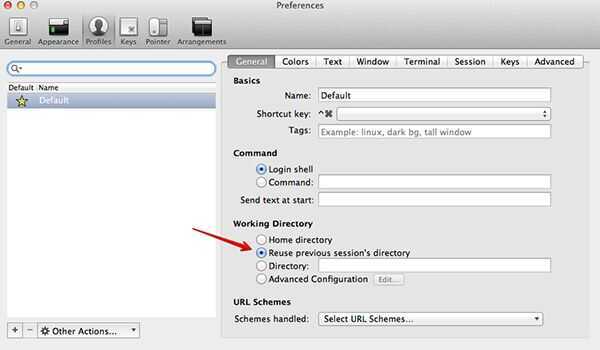
iterm settings
- scroll buffer -
Preferences > Profiles > Terminal > scrollback lines > 1000000 - Dark color -
Preferences > Profiles > Colors > color preset - No prompt Quit -
settings > general > closing > confirm quit iterm2 - settings > general > Magic - Instant replay, Clipboard history
- reopen last closed window iterm2
- cmd+z
- Method 3: Use system-level restore
- Go to System Preferences > General and turn off "Close windows when quitting an app.".
- Already - In iTerm2 preferences, go to General and set Startup to "Use system window restoration settings".
- When you quit iTerm2, the OS should save your windows. You can then reopen them from the Dock or by using the System Preferences > Recent Items menu.
- Preferences - Profile - Session (can search for undo) - Undo can revive a session that has closed up to (default is 5 sec) increase to 120 seconds
Natural Text Editing
- Go to Preferences...>Profiles>Default>Keys > Key Bindings (not Preferences... > Keys)
- Press Presets...
- Select Natural Text Editing
- Then, you can move a word backwards using
Option ⌥+←and a word forwards usingOption ⌥+→, move to the start of the line usingfn+←and to the end of the line withfn+→. Also you can delete a word backwards usingOption ⌥+⌫, delete the whole line usingCommand ⌘+⌫.
~/.zshrc
ZSH_THEME="powerlevel10k/powerlevel10k"
# plugins=(git osx docker docker-compose common-aliases zsh-autosuggestions)
plugins=(git common-aliases zsh-autosuggestions)

# source profile and aliases
. ~/.bash_profile
. ~/.profile
. ~/.aliases

# Autocompletion kubectl
source <(kubectl completion zsh)

# Autocompletion helm
source <(helm completion zsh)

# kubectl aliases
[ -f ~/.kubectl_aliases ] && source ~/.kubectl_aliases
function kubectl() { echo "+ kubectl $@">&2; command kubectl $@; }

# run command - setopt auto_cd

# Set autocd, which means that rather than typing cd <foldername> you just type <foldername>

# Randomize iTerm2 Tab Color
if [[ "$TERM_PROGRAM" == "iTerm.app" ]]; then
  # Generate random R, G, B values between 0-255
  r=$((RANDOM % 256))
  g=$((RANDOM % 256))
  b=$((RANDOM % 256))

  # Send escape sequence to iTerm2
  printf "\e]6;1;bg;red;brightness;%d\a" $r
  printf "\e]6;1;bg;green;brightness;%d\a" $g
  printf "\e]6;1;bg;blue;brightness;%d\a" $b
fi
~/.vimrc
syntax on
filetype on
~/.aliases
alias ll='ls -alhtF'
alias cl='clear'
# alias v='nvim'
# alias vim='nvim'
# alias f='v `fzf -i`'
# alias f='fuck'

alias k='kubectl'
alias d='docker'
alias dc='docker-compose'
alias w='watch ' #remember to add space so other alias can be used

# aliases
# section git
alias gpom='git pull origin master'
function gdon() {
    git add .
    git commit --no-verify -a -m "$1"
    git push origin "$(git_current_branch)"
}

#Section Docker
alias docker-clean='docker rm $(docker ps -a -f status=exited -q); docker volume rm $(docker volume ls -f dangling=true -q); docker images -qf dangling=true | xargs docker rmi'
alias docker-remove-all-images='docker rmi $(docker images -a -q)'

alias rb12='openssl rand -base64 12'
alias r12='openssl rand -hex 12'
alias rb16='openssl rand -base64 16'
alias r16='openssl rand -hex 16'
alias rb32='openssl rand -base64 32'
alias r32='openssl rand -hex 32'
# base58 password doesn't contain 0OIl to avoid confusion

# alias sf='cd ~/Repositories/stashfin/'

alias python=/usr/local/bin/python3.7
alias pip=/usr/local/bin/pip3

alias publicIp="curl wgetip.com"

# Encrypt Function (with auto-delete)
file_encrypt() {
    if [ -z "$1" ]; then
        echo "Error: Please provide a filename base."
        echo "Usage: file_encrypt deepak-wal1"
        return 1
    fi

    openssl enc -aes-256-cbc -salt -pbkdf2 -iter 100000 -in "${1}.mdenc" -out "${1}.mdenc.enc" && rm -rf "${1}.mdenc"

    echo "Success: Encrypted ${1}.mdenc and removed the original."
}

# Decrypt Function (with auto-delete)
file_decrypt() {
    if [ -z "$1" ]; then
        echo "Error: Please provide a filename base."
        echo "Usage: file_decrypt deepak-wal1"
        return 1
    fi

    openssl enc -d -aes-256-cbc -salt -pbkdf2 -iter 100000 -in "${1}.mdenc.enc" -out "${1}.mdenc" && rm -rf "${1}.mdenc.enc"

    echo "Success: Decrypted to ${1}.mdenc and removed the encrypted vault."
}
brew install pygments
Alias
- Suffix Alias (-s)
- Global Alias (-g)
https://thorsten-hans.com/5-types-of-zsh-aliases
References
- https://medium.com/better-programming/6-must-have-tools-for-developers-430fd56933dd
- https://github.com/trimstray/the-book-of-secret-knowledge
- https://github.com/jaywcjlove/awesome-mac
Cleanup
brew cleanup # Remove old versions

brew services cleanup # Remove all unused services
Automator (reducing screenshots size)
defaults write com.apple.screencapture type JPG

# defaults write com.apple.screencapture type PNG

# defaults write com.apple.screencapture location "$HOME/Screenshots"
defaults write com.apple.screencapture location "$HOME/Desktop"

for f in "$@"
do
 mogrify -quality 10% "$f"
done
https://about.gitlab.com/blog/2020/01/30/simple-trick-for-smaller-screenshots
ipv6 disable
mac
networksetup -setv6off Wi-Fi
ubuntu
sudo sysctl -w net.ipv6.conf.all.disable_ipv6=1

sudo sysctl -w net.ipv6.conf.default.disable_ipv6=1
windows
https://networking.grok.lsu.edu/article.aspx?articleid=17573
settings (google search - how to disable ipv6 in windows)
Force Mount ExFAT Drive as Read/Write on macOS
If your exFAT external hard drive is stuck in "Read Only" mode on your MacBook, follow these steps to manually force a Read/Write mount via Terminal.
- Verify your drive's identifier by running
diskutil list. (The instructions below assume your drive identifier is disk4s1. Replace it if yours is different).
1. Unmount the Locked Drive
Disconnect the drive from the automated, buggy system mounter:
diskutil unmount /dev/disk4s1
2. Create a Clean Mount Directory
Create a temporary folder inside the system Volumes directory to serve as the new landing pad:
sudo mkdir /Volumes/DeepBackup2
3. Force Mount with Read/Write Permissions
Mount the volume explicitly as an ExFAT file system with read and write (rw) privileges enabled:
sudo mount -t exfat -o rw /dev/disk4s1 /Volumes/DeepBackup2
How to Eject Safely Afterward
Because this bypasses the standard desktop interface, always unmount it via Terminal before unplugging the USB cable to prevent further file errors:
diskutil unmount /Volumes/DeepBackup2